
Guide
Starting the game
In the main menu, you can either choose to play one of the existing orienteering courses or let the game generate a random course. A course of 3 kilometers in length will typically take about 20-60 minutes to play.
Moving around
You can use the mouse to turn and to look around and the keyboard keys w and s to move forward / backward. Alternatively, if you don't want to use a mouse, you can use the keyboard arrow keys to move and to turn. Press F1 during the game to see which keyboard key does what.
Checking the map
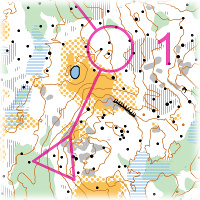
Press and hold space bar to have a look at the orienteering map. At the beginning of the game, the map is automatically oriented to the first leg of the route. The purple triangle shows the starting position and the purple circle with number one indicates the location of the first control point that you are supposed to find.
The map shows terrain features that will help you find your way. For instance, brown contour lines represent height differences, black dots are rocks and boulders, and lakes are marked in blue. Yellow represents an open area without trees, while green is an area of dense vegetation.
You can move the map by holding the left mouse button and moving the mouse. The map can be rotated by pressing q or e on the keyboard.You can also zoom the map by rotating the mouse wheel, or with keys 1 and 2. If you want to play without a mouse, you should go to the controls menu and configure the keys that you want to use for moving the map (e.g. w, a, s, d).
The control point is represented by a red-and-white flag in the forest. Once you find it, run over it until you see the text Control point 1 on the screen. Then open the map again, press r to quickly orient it for the next leg, and keep going!
Finish
Once you reach the finish point (marked with a purple double circle on the map), a replay of your run will be shown, along with times it took to find each control point.If the map was a random map, you can save it for later use. You can also save the replay of your run and perhaps challenge a friend to play the same course, then load both replays into the same view and see which one of you is the king.
Tips
- The compass needle always points to the north while the compass disc rotates as you rotate the map. If you turn the map so that the direction you want to go is up, and then turn yourself so that the compass needle is aligned with the compass, you will be running in the intended direction.
- When you need to cross an area of dense forest without many clearly identifiable features, try to maintain your heading by, for example, choosing a tree some distance in front of you and running towards it, then choosing the next tree etc.
- If you have lost track of where exactly you are, try to find a feature in the terrain that is easy to match with the map. For example, an open area, a large hill, or a pair of large rocks.
- Running through dense forests, swamps or uphill is slower than on flat open areas.
Playing with an exercise bike
If you have an exercise bike, you can improve your physical condition also in the non-virtual world by using the bike to play the game. You will also need a web camera, or a mobile phone with an app such as DroidCam. The camera will detect your cycling speed for forward movement, and hand gestures for turns and other actions.
Enable motion tracking in the game options, calibrate it by showing the requested gestures to the camera, and you're ready to go.
Try to keep lighting in the room constant while playing. Regular indoor lighting is usually better than sunshine coming through the window. Also avoid having too much background movement within the camera's field of vision.